PhilHealth Online Registration: Step by Step (2026)
I registered a cousin online who had zero income to declare — between jobs, nothing coming in — and the form let her submit it anyway. Submitting isn’t the same as being covered, and that gap is where most of the confusion here actually lives.
On this page
- Quick Answer
- What Do You Need Before You Start?
- How Do You Register Online, Step by Step?
- Can You Register With No Income?
- Do You Need an SPA Before Your First Payment?
- Why Do Registrations Get Rejected?
- What Happens After You Submit?
- How Do You Register as an Employer Instead?
- Frequently Asked Questions
Quick Answer
PhilHealth online registration lets you get a PIN without visiting a branch: verify your email, fill in your personal details and member type on the digital PMRF, upload a valid ID, and submit. Your PIN typically arrives by email within a few business days. Submitting the form gets you registered — it doesn’t automatically mean you’re covered, since coverage depends on your contribution actually being posted, and since April 2026 that first payment also requires a Statement of Premium Account under PhilHealth Advisory No. 2026-0016.
Every Filipino is required to be a PhilHealth member under Republic Act 11223, the Universal Health Care Act — but “registered” and “covered” aren’t the same word, and the difference matters most the first time you actually need to use your coverage.
What Do You Need Before You Start?
Have these ready before you open the form. Missing even one is the fastest way to lose your progress mid-session.
- An email address you check regularly
- An active mobile number
- Your full legal name as it appears on your PSA birth certificate
- One valid government ID (passport, UMID, driver’s license, national ID, or similar)
- A clear scan or photo of that ID, under the site’s file-size limit
- Your member type — employed, self-employed, voluntary, or OFW
Not sure which membership category actually applies to you, or what documents your specific situation calls for? Our PhilHealth requirements guide breaks it down by member type before you start filling anything in.
How Do You Register Online, Step by Step?
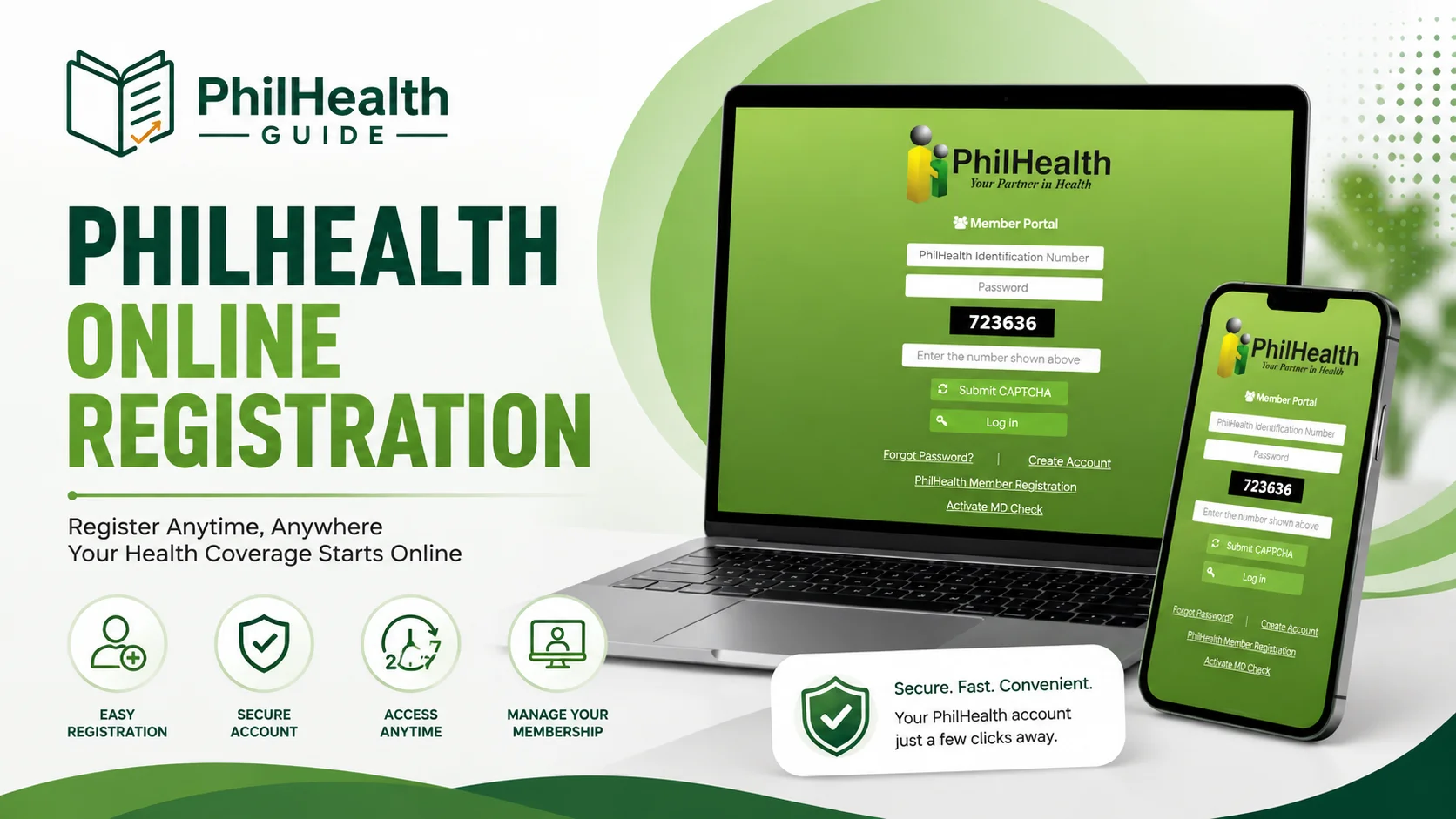
- Go to philhealth.gov.ph and find the online member registration option under Online Services — never a link shared through text, email, or social media.
- Enter your email and complete the CAPTCHA. Use an address you actually check; your PIN and all future correspondence go here.
- Click the verification link sent to that email before the session times out.
- Set your account password. Most members get tripped up here — the system typically wants a mix of uppercase, lowercase, a number, and a special character. Write it down somewhere safe before you move on.
- Fill out the digital PMRF — full legal name (matching your PSA birth certificate exactly), birth date, address, and contact details.
- Select your member type — employed, self-employed, voluntary, or OFW.
- Upload your valid ID as a clear, unedited photo or scan.
- Submit and wait for your PIN by email, usually within a few business days.
Once your PIN arrives, you can log in to the Member Portal, and printing your MDR right away is the fastest way to confirm your registration actually went through correctly.
Can You Register With No Income?
This is genuinely more common than people assume, and the form doesn’t stop you from doing it. If you’re between jobs or have no current income, you can still complete registration and declare ₱0 — but be clear about what that actually means: registering isn’t the same as having active coverage. Your PhilHealth benefits only kick in once actual contributions are posted to your account, which means you’ll need to start paying — even a minimum amount — once you do have income.
Voluntary member is usually the right category to select while you’re between jobs, and you can update it later once your situation changes.
Do You Need an SPA Before Your First Payment?
The SPA is a system-generated, QR-coded billing statement showing exactly what you owe for the period — PhilHealth introduced it to cut down on payment-posting errors. Once you know what you should actually be paying, our contribution guide and contribution calculator can confirm the exact amount for your declared income before you generate that statement.
Why Do Registrations Get Rejected?
- Blurry or edited ID photos — upload a genuine, clear scan, not a screenshot of a screenshot.
- Name mismatches — your form needs to match your PSA birth certificate exactly, not your ID’s slightly different spelling or a dropped middle name.
- An already-registered email or duplicate PIN attempt — if you’re not sure whether you already have a PIN, check our lost PhilHealth number guide before registering again. PhilHealth issues one PIN per person, for life.
- Incomplete address fields — a missing barangay or zip code is enough to stall processing.
What Happens After You Submit?
If your PIN doesn’t arrive within a week, check your spam folder before assuming something’s wrong. Still nothing? The registration may need manual review — a call to the PhilHealth Corporate Action Center or an email can usually confirm the status faster than waiting indefinitely.
How Do You Register as an Employer Instead?
If you’re actually trying to register a business rather than yourself, this isn’t the same process — employer registration can’t be completed fully online. It requires an LHIO visit with your ER1, ER2, and POAF forms plus business documents (DTI, SEC, or CDA registration, whichever applies to your structure).
One thing worth checking first: many newly registered businesses in 2026 are receiving their PhilHealth Employer Number automatically through the government’s Central Business Portal at the same time as their DTI or SEC registration, which can skip the separate LHIO trip entirely. If that didn’t happen for you, the manual ER1/ER2 route at your local LHIO is still the fallback — confirm your status with PhilHealth directly rather than assuming either way.
If a branch visit is unavoidable anywhere in that process, booking a PhilHealth online appointment first can save you time.
Frequently Asked Questions
How do I register for PhilHealth online?
Visit philhealth.gov.ph, verify your email, complete the digital PMRF with your personal and member-type details, upload a valid ID, and submit. Your PIN typically arrives by email within a few business days.
Can I register for PhilHealth online with no income?
Yes — you can declare ₱0 if you’re currently unemployed, but registering isn’t the same as having active coverage. You’ll need to start paying contributions once you have income for benefits to apply.
What are the PhilHealth online registration requirements?
A valid email and mobile number, your full legal name matching your PSA birth certificate, complete address details, your member type, and a clear photo or scan of one valid government ID.
How long does online registration take?
Submitting the form takes a few minutes. Receiving your PIN by email typically takes a few business days, sometimes longer if your application needs manual review.
Do I need a Statement of Premium Account before paying?
Yes, if you’re a self-paying member. Under PhilHealth Advisory No. 2026-0016, effective April 1, 2026, self-earning individuals, professional practitioners, and most overseas Filipinos must generate an SPA through the Member Portal before their first payment goes through.
Can businesses register for PhilHealth online?
Not fully. Employer registration generally requires an in-person LHIO visit with ER1, ER2, and POAF forms, though some new businesses now receive their Employer Number automatically through the Central Business Portal at the time of DTI or SEC registration.
What if I already have a PhilHealth PIN?
Don’t register again — PhilHealth issues one PIN per person for life, and a duplicate attempt is a common reason applications get flagged. Recover your existing PIN instead.